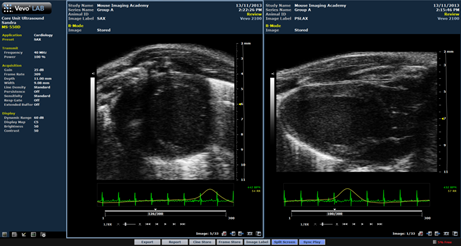
  Sandra explains Split Screen: Sandra explains Split Screen:Today I would like to introduce you to the split screen function, which is available on all current Vevo systems and in VevoLab. It is a great tool for longitudinal studies and for image optimization. I use split screen to display structures or organs in the transvers and sagittal view at the same time or to look at differences by comparing the live image to a previously acquired cine loop. This function can be useful when you want to visually compare images taken at different time-points within a study or from different animals at the same time-point. Split screen can also be helpful when you are just starting to learn ultrasound because it allows you to open a saved image of your target organ as a reference, at the same time as viewing your live image. How to do it? While displaying one cine loop, select “Split screen” from the keyboard or screen. Your current image will be displayed on the left side. Use the L/R button or click on the right side to activate the controls for this display and then either start scanning or choose an acquired image from the study browser. Use the L/R button or click on the respective image to switch back and forth between the images and add some measurements or change the settings. The active image area will be indicated by a blue frame. In the example below, I used Sync Play to replay the recordings of the long and short axis of the mouse heart at the same speed.
 Stay Connected to Innovation Learn about the Touch-Screen and On-System Imaging Guides on the Vevo 3100 |
|
VisualSonics, VisualSonics logo, VisualSonics dot design, Vevo, Vevo MicroMarker, VevoStrain, VevoCQ, SoniGene, RMV, EKV, MicroScan, Insight through In Vivo Imaging are registered trademarks of FUJIFILM VisualSonics Inc. |